Editing
All edits are undoable (Cmd+Z / Cmd+Shift+Z).
Selecting
Click a clip to select it. Select a time range in the arrangement to address a stretch of material — range selection drives Create Region and range-based splitting. Edit → Select All (Cmd+A) and Deselect All do what they say.
Splitting
Edit → Split (Cmd+E):
- With no range selected, the clip under the playhead is cut in two at the playhead position — on every track that has a clip there.
- With a range selected, the clip is cut into up-to-three pieces: before, inside, and after the range.
Each piece gets its own freshly named region (numbered after the original), and fades stay with the edge they belong to.
Creating and managing regions
- Create → Create Region… (Cmd+R) names the selected range as a region. The clip containing the range is unchanged — the region is added to the pool for later use.
- Regions can be renamed in the Regions list.
- Edit → Delete Unused Regions clears out every region no clip uses.
- Trimming the edge of a clip whose region other clips also play gives that clip its own freshly named copy of the region first, so the other clips stay as they are. Undo removes the copy again.
Moving, duplicating, deleting clips
- Drag a clip to move it along the timeline (snap to grid applies when enabled).
- Cmd+D duplicates the selected clip.
- Delete removes the selected clip from the timeline (the region and its audio remain).
- Drag a region from the Regions list into the arrangement to place a new clip of it.
Clip gain and fades
Every clip carries its own dynamics:
- Clip gain — per-channel volume for just that clip, adjusted directly on the clip.
- Fades — drag the fade handles at a clip's edges to create fade-ins and fade-outs. The default curve is equal-power; the curve can be bent. Fade ramps may extend beyond the clip's edge — the fade then reads neighbouring source material, which is how two butting clips crossfade.
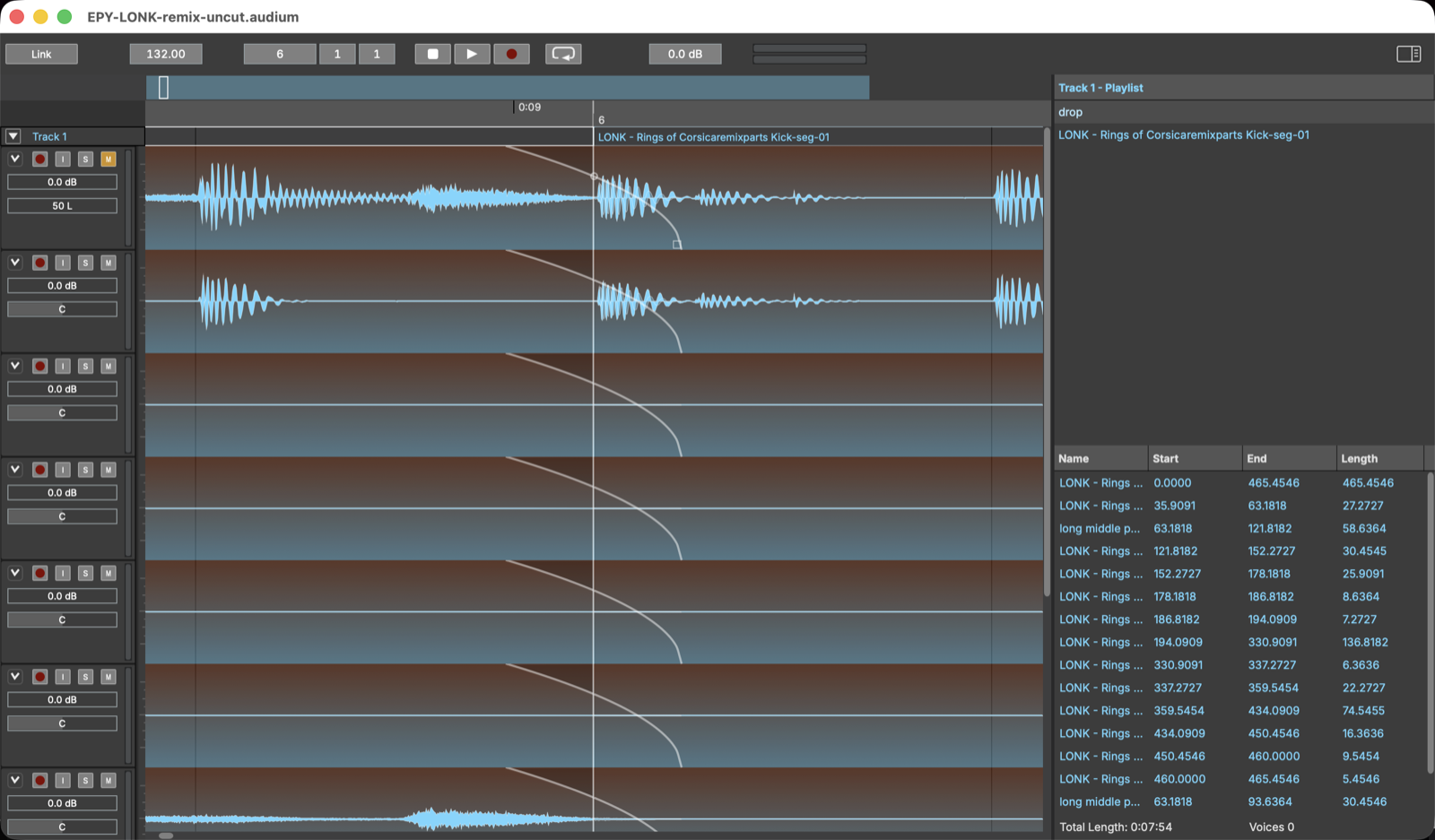
To crossfade two clips that overlap, hold Shift while dragging or trimming one of them: wherever it overlaps a neighbour, the left clip fades out and the right clip fades in over exactly the overlap, updating live as you drag. Releasing Shift, or dragging out of the overlap, brings the original fades back; the crossfade is one undo step.
Crossfades at segment joints can also be created automatically by Auto Edit (see Analysis and Auto Edit); their default length and curve are configured in Settings → Auto Edit.
Clip speed
Hold Cmd+Alt and drag a clip's edge to change its speed, tape-style: the audio plays faster or slower — by default pitch and length change together (re-pitch), so half-length is double speed and one octave up. The clip shows its ratio (×2.00) next to its name, and the analysis markers, fades and waveform follow the stretch. Speeds range from ×0.25 to ×4; a plain edge drag still trims. A clip routed at a speed other than ×1 keeps its region untouched — splitting, cloning and exporting all preserve the speed and mode, and one undo reverts a stretch. While the Stretch Clip panel (Edit → Stretch Clip…, Cmd+T) is open on a clip, that clip is in stretch mode: its edges stretch on a plain drag, no modifiers needed. The check mark and the panel's close chip keep the session as one undo step; Escape reverts everything since the panel opened.
The panel's Mode box picks how the speed is realised. Re-Pitch (the default) is classic varispeed. Time-Stretch keeps the clip's pitch while the length changes — a pitch-preserving time-stretch, powered by the Rubber Band Library R3 engine. The switch applies live and also plays out in exports and bounces; extreme ratios smear sharp transients, which is the nature of the technique.
Separate Stems
Edit → Separate Stems… splits the selected clip into Drums, Bass, Other and Vocals tracks using a source-separation model that runs on your machine. See Stem separation.
Per-clip context menu
Right-click a clip for Export… — bounce just that clip to a WAV, FLAC, AIFF, Ogg Vorbis or MP3 file (see Exporting audio).
Snap and zoom
The grid snaps drags to musical positions (Options → Snap to Grid, Cmd+G, turns snapping off to place freely); View → Zoom In / Zoom Out (Cmd++ / Cmd+-) and paging (← / →) navigate, and Follow Transport keeps the playhead in view.